Chord Diagrams Upgrade
Release 2026.01.27
Chord Diagram Display Options
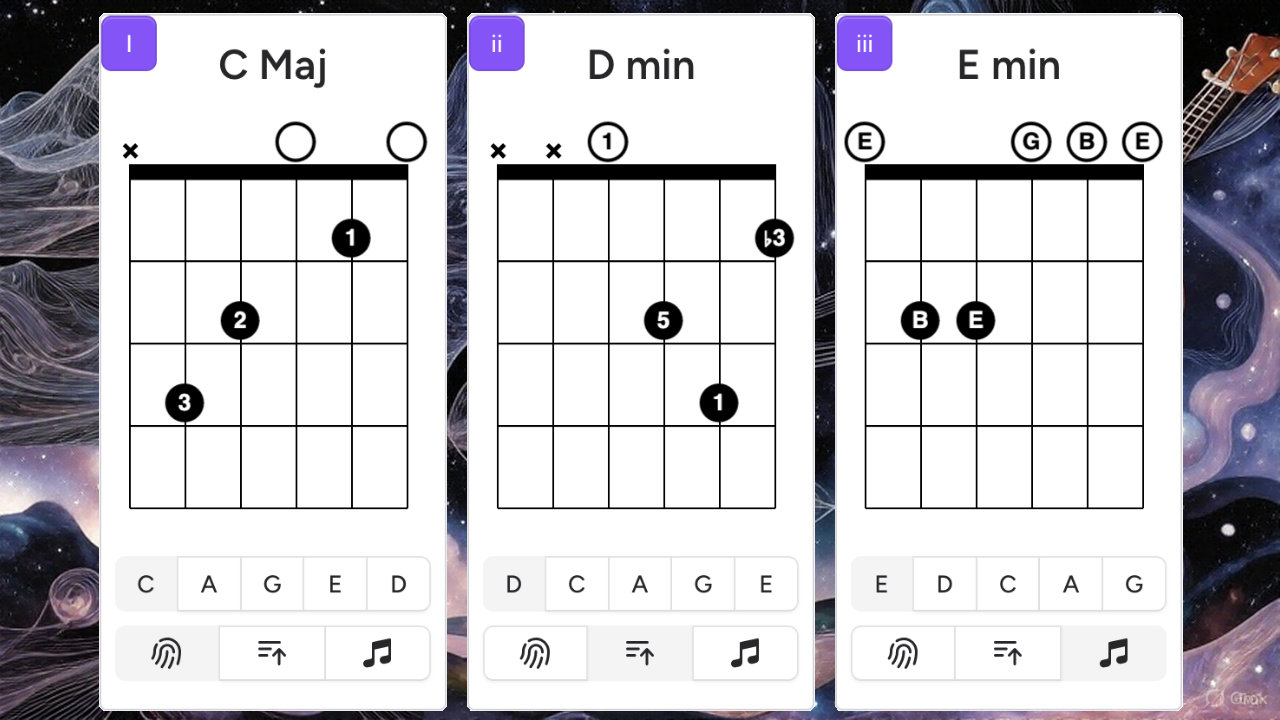
Release 2026.01.27 brings a major upgrade to chord diagrams in String Theory. By default, chord diagrams now display which left-hand finger to use for fretting each note in a chord. You can also switch to showing intervals or note names instead. CAGED chord shape selection remains a core feature of the diagrams.
CAGED Chord Positions
Whenever you view a chord in String Theory, you can choose to see how to play it in any of its CAGED positions. The CAGED system is named after the five fundamental open chord shapes: C, A, G, E, and D. Each shape can be moved up and down the neck to play the same chord (or related chords/scales) in different positions.For example:
The C form is derived from the open C chord.
The A form comes from the open A chord.
and so on for G, E, and D.
This system helps guitarists map the entire fretboard and find chord voicings efficiently.
Chord Fingering (Default Mode)
Chord fingering is now the default display mode for all chord diagrams in String Theory. This matches the convention used in most standard guitar chord charts. The numbers on the diagram indicate which left-hand finger to use for each fretted note:
1 = Index finger
2 = Middle finger
3 = Ring finger
4 = Pinky
This makes it immediately clear how to physically play the chord.
Chord Intervals
One of the most exciting features in this release is the option to display intervals instead of fingerings. In this mode, each note in the chord diagram is labeled with its interval relative to the root note.For example, a basic major chord consists of three notes with the intervals 1, 3, 5:
1 = root note
3 = major third
5 = perfect fifth
This view is extremely helpful for understanding chord construction, locating key chord tones (like the 3rd or 7th), and building a deeper knowledge of music theory on the fretboard.
Chord Notes by Name
Sometimes you just want to know the actual note names in a chord. The "display notes by name" option does exactly that. If you're curious where a particular note (like the 9th or the major 7th) lives within a chord voicing, this mode makes it easy to spot.These new display options give you more flexibility to learn chords in the way that best suits your current goals—whether you're focusing on technique (fingering), theory (intervals), or specific pitches (note names). Try them out and see which view accelerates your progress the most!